
3 Easy Tricks to Get Actual Work Done with Claude Meetings
Anthropic’s Claude Meetings turns AI into a live Google Meet teammate that drafts documents while you talk. To get the most out of it, co-edit live drafts before hanging up, keep sensitive prompts inside the private claude.ai page, and search saved transcripts later to save time on follow-ups.
Anthropic released Claude Meetings for Google Meet, and it is much more than a basic note-taker. Instead of waiting until your call ends to give you a summary, Claude joins the meeting as a live teammate. It can write documents, draw whiteboards, and send updates while you are still talking.
To get the most out of this new tool without any awkward mistakes, try these three simple tricks on your next call.
Finish Your Work Before You Hang Up
Most meetings end with a long to-do list that everyone puts off until tomorrow. You can use Claude to finish the work right there on the call.
-
Ask Claude out loud: Just say something like, "Claude, start a doc for our project plan" or "Claude, make a whiteboard." Claude will listen to what you have talked about so far and create a live draft right away.
-
Edit together in real time: Claude drops a link to a shared meeting page in your Google Meet chat. Have everyone click it so you can all edit the document together while you keep talking. You will end the call with a finished draft instead of extra homework.

Keep Private Info Out of the Public Chat
When Claude joins a call with your coworkers, it replies directly inside the public Google Meet chat. That means everyone on the call can see what Claude writes—including info pulled from your personal accounts.
-
Use the private meeting page for sensitive stuff: If you need to look up private details or have a side chat with your team, type your questions inside the claude.ai meeting page instead of the Google Meet chat. Only people from your company can see what happens there.
-
Double-check settings for outside guests: If you have clients or guests on a call, Claude automatically hides its answers from the public chat so they don't see your internal notes. However, it still records a text transcript of what they say, so always ask guests if they are okay with Claude joining before you start.

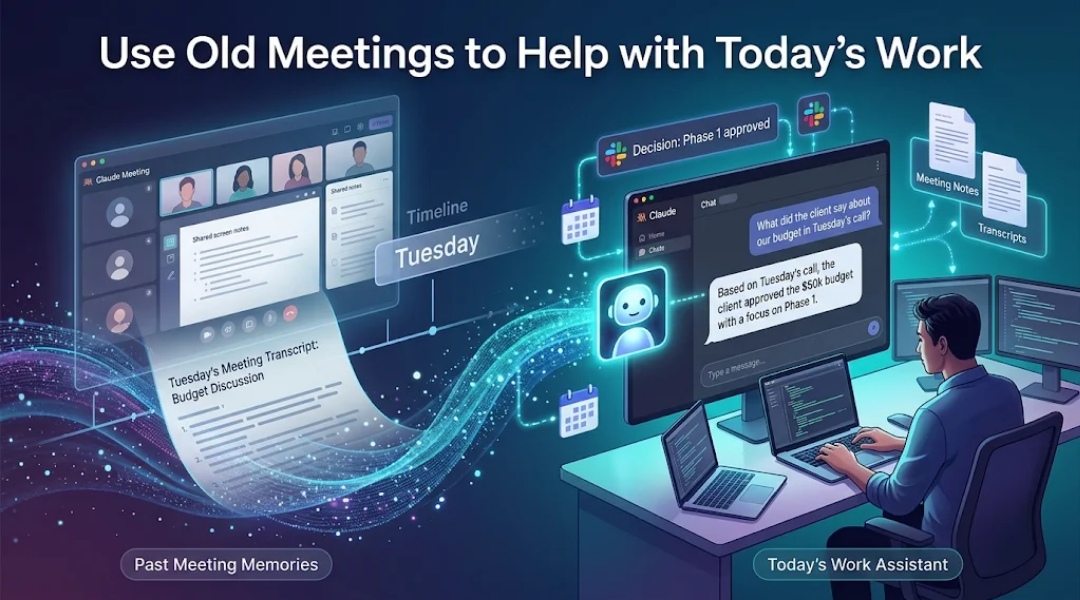
Use Old Meetings to Help with Today’s Work
The best part about Claude Meetings happens after everyone hangs up. Claude saves a full text transcript and notes about anything shared on your screen, turning your past calls into a searchable memory.
-
Ask questions about past calls: When you are working in a normal Claude chat later in the week, you can ask things like, "What did the client say about our budget in Tuesday's call?" Claude will pull the exact answer from your meeting notes so you don't have to dig through old files.
-
Send quick updates automatically: You can connect Claude to tools like Slack so it can post decisions or reminders for your team during the call. Just keep in mind that while basic notes and live documents are free to use during the beta, using connected apps counts toward your regular Claude usage limits.
Conclusion: Let AI Handle the Busywork
AI tools are only helpful if they actually save you time. By writing documents together on the call, keeping private notes separate, and searching past meetings later, you can turn boring status calls into finished work before anyone even clicks "Leave call."